Manton Reece
About Photos Videos Archive 30 days 90 parks Replies Reading Search Also on Micro.blog
  • React Native diary #8: Objective-C

    I haven’t written a new React Native diary blog post in a while because there hasn’t been anything noteworthy. We’ve shipped new versions of Epilogue for iOS and Android. Micro.blog 3.0 for iOS is almost ready — also a rewrite for React Native.

    We did hit one feature that I wanted to preserve from the previous version of Micro.blog: Markdown and HTML syntax highlighting when writing a new blog post. The best way to preserve this was to port the Objective-C code over to React Native. (This feature won’t be available on Android yet.)

    The “native” in React Native is because it uses native iOS and Android controls, even though they are driven from a JavaScript engine. This means we can make our own native components, written in Swift or Objective-C.

    There are a few pieces of code to make this work:

    • MBHighlightingTextView: a UITextView subclass, but it could be any control.
    • MBHighlightingTextManager: a RCTViewManager class, helping us build an interface between JavaScript and native code.
    • HighlightingText: a React.Component, wrapping up the native control.

    Here’s a snippet of the MBHighlightingTextView interface:

    @interface MBHighlightingTextView : UITextView
    
    @property (copy, nonatomic) RCTBubblingEventBlock onChangeText;
    @property (copy, nonatomic) RCTBubblingEventBlock onSelectionChange;
    
    @end
    

    And the MBHighlightingTextManager interface:

    @interface MBHighlightingTextManager : RCTViewManager <UITextViewDelegate>
    
    @end
    

    For the MBHighlightingTextManager implementation, the important bits are the macros that define what properties we care about:

    @implementation MBHighlightingTextManager
    
    RCT_EXPORT_MODULE(MBHighlightingTextView)
    
    RCT_EXPORT_VIEW_PROPERTY(onChangeText, RCTBubblingEventBlock)
    RCT_EXPORT_VIEW_PROPERTY(onSelectionChange, RCTBubblingEventBlock)
    
    RCT_CUSTOM_VIEW_PROPERTY(inputAccessoryViewID, NSString, MBHighlightingTextView)
    {
      if (json) {
        NSString* input_id = [RCTConvert NSString:json];
        // ...
      }
    }
    
    - (UIView *) view
    {
      // make a new MBHighlightingTextView and return it
      // ...
    }
    
    @end
    

    Finally, the JavaScript side that loads the native component:

    import * as React from 'react';
    import { requireNativeComponent } from 'react-native';
    
    const MBHighlightingTextView = requireNativeComponent("MBHighlightingTextView");
    
    export default class HighlightingText extends React.Component {
      render() {
    	return (
    	  <MBHighlightingTextView {...this.props} />
    	)
      }
    }
    

    Now we can simply use <HighlightingText> in place of <TextInput> in our XML when laying out the UI. Handlers like the property onChangeText will be referenced from Objective-C so we can call them in response to methods from our UITextView delegate.

    I’m leaving some code out in the above examples for readability. And I have a bunch of code still to write, working in a branch of our project on GitHub. But already the basics are working, after (frankly) a lot of trial and error and sifting through the documentation, Stack Overflow, and even asking ChatGPT, which knows a surprising amount of how this works.
    → 8:25 AM, Apr 20
  • React Native diary #7: accessibility

    I heard from a user this week that some screens in Epilogue aren’t very accessible with VoiceOver. To be honest I was so focused on getting this release out, I didn’t test accessibility. Most of the buttons and views do have good defaults for accessibility, provided by iOS, but there was one pattern I was using with React Native’s <Pressable> that needed to be updated.

    This is the JSX code I have for showing the profile photo in the navigation bar, which can be tapped to show the profile screen:

    <Pressable onPress={() => { onShowProfile(); }}>
      <Image source={{ uri: avatar_url }} />
    </Pressable>
    

    To fix this, I first tried adding an accessibilityLabel attribute to the <Image>, but I found it works better on <Pressable>, where the role can also be set to “button”:

    <Pressable onPress={() => { onShowProfile(); }} accessibilityRole="button" accessibilityLabel="show profile">
      <Image source={{ uri: avatar_url }}  />
    </Pressable>
    

    There is more I could do, but as a first pass these kind of tweaks should make Epilogue much more usable in VoiceOver. I did a quick run-through with Accessibility Inspector to catch similar problems. After I test on my iPhone, I’ll roll these into a bug fix update.

    → 8:44 AM, Feb 23
  • React Native diary #6: SF Symbols

    The goal in my experiments with React Native is to build an app that feels as native to iOS as possible. Early on I tried to use SF Symbols and couldn’t get it to work, so I dropped in some custom icons instead. But the more I used the new version of Epilogue on my iPhone, the more this compromise bugged me.

    I briefly considered exporting the symbols I need as SVGs or PNGs and using them in the app only on iOS, but that’s against Apple’s license. Not worth even the small risk. Sticking to real SF Symbols also ensures the icons match other apps if Apple redesigns them slightly in future versions of iOS.

    I revisited using SF Symbols today with the component birkir/react-native-sfsymbols. A default install shows a runtime error when attempting to load a symbol. Luckily there’s a work-around mentioned in one of the issues.

    I copied this file from the repo and saved it as SFSymbols.tsx. Then instead of importing from the Node module, I just import that file:

    import { SFSymbol } from "./SFSymbols";
    

    It works! Here’s a quick screenshot of my navigation bar now:

    SF Symbols in navbar sccreenshot
    → 12:44 PM, Feb 16
  • React Native diary #5: misc observations

    Some thoughts after about a week of using React Native to rewrite Epilogue. It’s going well and has been fun to work in a new framework, knowing that it’s going to contribute to our long-term plan for mobile apps in Micro.blog. It’s not a throw-away distraction.

    It’s only by diving in that I’ve realized how surface-level my experience with JavaScript really is. I’ve taken some time to experiment more with JavaScript promises and async functions. Years ago I bought the book JavaScript: The Good Parts, but I’m not sure I did more than skim it, and it’s probably way out of date for modern JavaScript.

    I got pretty far into development over the last week even though I barely understood some of the React features I was using, like useState. That’s okay. After I ship Epilogue 1.1, I’m going to go back and clean up a few things.

    Xcode builds are slow and spin up the fans on my Intel-based MacBook Pro every time, but iterating on the UI and features is extremely fast because the JavaScript code can reload while the iOS app is running. In most cases, the UI refreshes automatically in the iOS Simulator when I save my Styles.js file in Nova. I rarely need to run a build in Xcode.

    App file sizes are bigger, but not enough to matter. Epilogue 1.0 was a tiny 0.5 MB, and my latest build of Epilogue 1.1 is 2.7 MB. A much more full-featured app, Gluon for Micro.blog, is 8.6 MB. This appears to be a non-issue.

    React Native is not new. It’s nice not to be on the cutting edge, because by now every problem I’m likely to run into has been solved. Some things I thought might be hard were easy enough, like handling the epilogue:// custom URL scheme.

    I’ve collected all the blog posts in this series in a category on my blog.

    → 2:28 PM, Feb 15
  • React Native diary #4: modals

    I’m continuing to plow ahead with the Epilogue rewrite. I’ve added a storage class to wrap AsyncStorage, making it easier to persist various bits of data. I’ve added searching for books using the Google Books API, largely copying JavaScript code from the previous version. The fetch() calls are the same between web browser-based JavaScript and React Native.

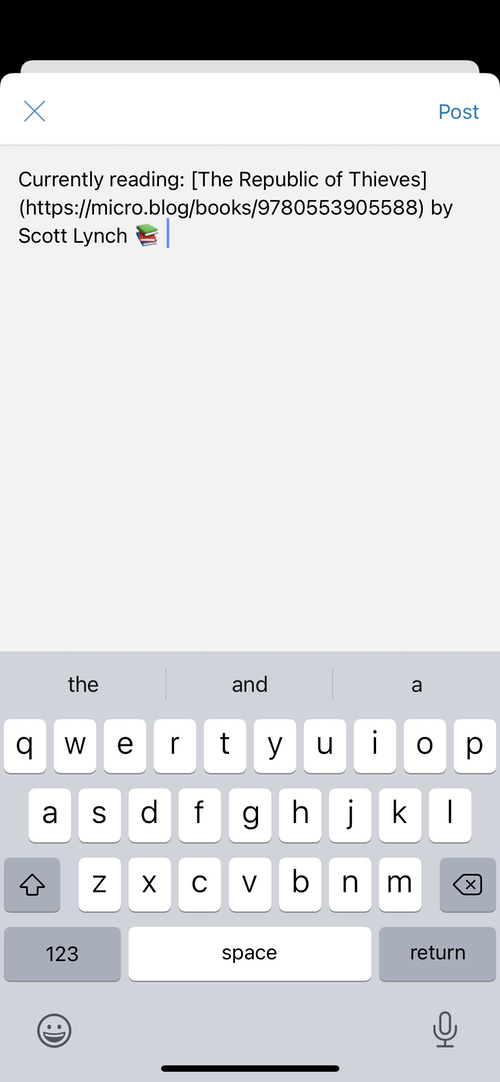
    Today I’m working on adding the posting screen. This shows a modal text view with some default blog post text for the current book, so you can quickly blog about what you’re reading:

    New post screenshot

    Just like the navigation controller, the modal uses React Navigation so that it looks and feels the same as any native iOS app. In the JSX, we add a group containing the new modal screen declaration:

    <NavigationContainer>
    	<Stack.Navigator>
    		<Stack.Group>
    			...
    		</Stack.Group>
    		<Stack.Group screenOptions={{ presentation: "modal" }}>
    			<Stack.Screen name="Post" component={PostScreen} />
    		</Stack.Group>
    	</Stack.Navigator>
    </NavigationContainer>
    

    For this version, I’m using a simple multi-line TextInput class. This appears to use a real UITextView under-the-hood.

    One thing I’d like to experiment with later is integrating the Markdown syntax highlighting Objective-C code from the current Micro.blog app, making it a component that we could use in multiple apps. It obviously wouldn’t work on Android, but we’ll need something like it when we’re ready to switch the official Micro.blog iOS app over to React Native.

    → 1:45 PM, Feb 14
  • React Native diary #3: dark mode

    Even though Epilogue 1.0 was simple, it did support Dark Mode on iOS. I always run my phone in Dark Mode, so I didn’t want to lose that when rewriting Epilogue in React Native.

    There are a handful of helper utilities to access iOS-only features in React Native, like Platform.isPad . There’s also useColorScheme, which can be used to check if we’re running in Dark Mode:

    const is_dark = (useColorScheme() == "dark");
    

    There doesn’t appear to be built-in support in React Native to use different sets of styles automatically. There are, however, at least a few third-party libraries to make this easier, including various dynamic stylesheets and React Navigation’s themes. I started to go down that rabbit hole, then stopped… There’s a lot to learn and I’d rather adopt a quick “worse is better” approach to first get a feel for how painful it is to style my views manually.

    I have a Styles.js source file that looks like this, controlling layout and colors for UI elements in Epilogue:

    import { StyleSheet } from "react-native";
    
    export default StyleSheet.create({
      bookTitle: {
        marginTop: 8,
        paddingLeft: 7
      },
      bookAuthor: {
        paddingTop: 4,
        paddingLeft: 7,
        color: "#777777"
      },
      ...
    }
    

    To use this style in JSX, I have something like this:

    <Text style={styles.bookAuthor}>Neil Gaiman</Text>
    

    To support Dark Mode, I’ve added a special “dark” field to the styles object. This will only have style properties that I want to override from the default light mode. In the case of bookAuthor, there’s no need to change the padding, just the text color:

    bookAuthor: {
      paddingTop: 4,
      paddingLeft: 7,
      color: "#777777"
    },
    dark: {
      bookAuthor: {
        color: "#FFFFFF"
      }
    }
    

    Back to the JSX, I check my is_dark variable and then reference a different set of styles. JSX lets me pass an array of styles, so we’ll include both the light mode version (styles.bookAuthor) and then the dark value (styles.dark.bookAuthor) that will override the color:

    <Text style={is_dark ? [ styles.bookAuthor, styles.dark.bookAuthor ] : styles.bookAuthor}>Neil Gaiman</Text>
    

    Here are a couple screenshots showing each mode side by side:

    Epilogue light screenshot Epilogue dark screenshot

    The JSX code is admittedly a little clunky. I can see how it could be cleaned up and more readable with other solutions. But the app only has a few screens, so I’m going to run with this for now.

    → 2:26 PM, Feb 13
  • React Native diary #2: state

    I’ve been programming the Mac for over 25 years, but I’m stumbling through React Native and JavaScript like a newbie. I’ve always found the best way to learn is by doing. Hit some brick walls, dig under them, and then realize later that you built the wall yourself, fighting the frameworks.

    One of the benefits of React Native or SwiftUI is a formal way to manage state, letting the frameworks update the UI for you when something changes. I’ve never thought of this as a big advantage, but maybe I’ll warm up to it.

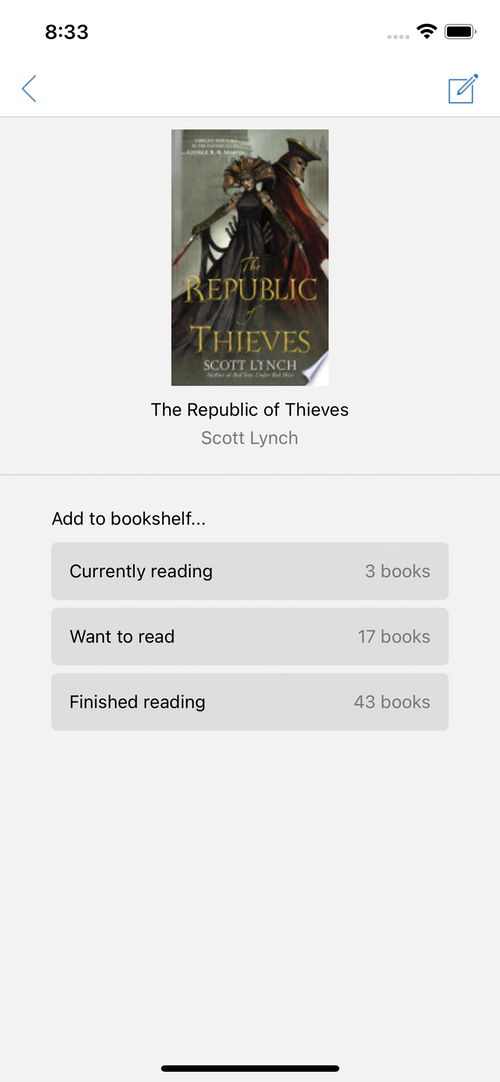
    As I work on rewriting Epilogue, I’ve improved the book details screen to include a list of your bookshelves. Tap a bookshelf to add the current book to that bookshelf. A progress spinner will show while Epilogue sends the book data to Micro.blog.

    In the world of UIKit, I would probably have a reference to a UIActivityIndicatorView. When I’m ready to send the web request, I’d show and start the progress spinner by calling startAnimating() on it.

    In React Native, I have a boolean state that keeps track of whether the progress spinner should be animating, defaulting to false:

    const [ progressAnimating, setProgressAnimating ] = useState(false);
    

    Then when the button is pressed, I set the state to true and carry on with the web request:

    function addToBookshelf(bookshelf_id) {
      setProgressAnimating(true);
    
      // send book data to Micro.blog
      // ...
    }
    

    In the UI, the JSX references this boolean. The UI will automatically update whenever the value changes. I don’t need to hold a reference to the actual ActivityIndicator object anywhere in my JavaScript code:

    <ActivityIndicator size="small" animating={progressAnimating} />
    

    Here’s a 3-second video of how this looks in the app:

    Next up: I need to add sign-in back to the app before I can do a beta. I’ll also be working on Dark Mode and the search box.

    → 5:12 PM, Feb 12
  • React Native diary #1

    In the spirit of Brent’s Sync Diary series from 2013-2014, I’m going to blog a little about our decision to move away from UIKit for some of our Micro.blog apps. I’m new to React’s way of thinking about UI, and I barely use SwiftUI either, but it’s just code and I’ve been able to make some progress learning React Native already.

    First, to clear up some potential confusion: we are not abandoning iOS! I still love my iPhone, even if I’m very frustrated with how Apple is treating developers. We are embracing Android more fully, and limiting how much time we spend in Apple-only frameworks. Our iOS apps will still be the best we can make them.

    Micro.blog for Android is a pretty big project even in beta. Vincent hit the ground running. It’s a little daunting for me to wrap my head around until I’m more comfortable with React Native, so I started somewhere simple: our app Epilogue, which I built a couple months ago for both iOS and Android with HTML, JavaScript, and a sprinkling of native Swift and Kotlin.

    Epilogue 1.0 was developed very quickly. While I was happy to ship the app to customers, I wasn’t too happy about the UI. It was a little clunky, and it started to feel more clunky the more I used it regularly for my own book tracking. React Native uses JavaScript but with native views instead of web views, so I was pretty sure a rewrite would fix the problems in the UI.

    I started with the placeholder JavaScript you get from running npx react-native init, then added in Epilogue elements like the book list and querying the Micro.blog API. I also integrated react-native-menu/menu to get a native UIMenu-based context menu on iOS, something I couldn’t do before with the HTML-based app.

    The toolchain for React Native makes me a little nervous. It uses every package manager you can think of: Node, Yarn, Ruby Gems, CocoaPods… It feels fragile, but there are so many thousands of developers using this framework, I’m also not very worried about it breaking.

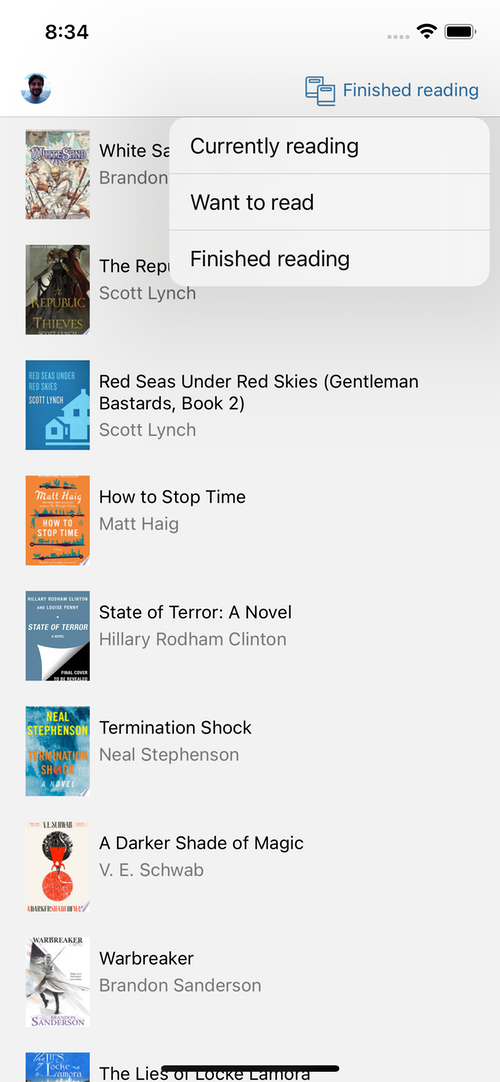
    Here are a couple of screenshots of the in-progress new version of Epilogue:

    Epilogue book list screenshot Epilogue book details screenshot

    It’s already better. The learning curve for me is getting used to how React shares state and React’s JSX markup, a mashup of XML for view layout with bits of JavaScript. I’m sure I’m not doing it quite right, but already I have something that works well as a foundation for Epilogue 1.1.

    → 9:47 AM, Feb 11
  • Moving away from App Store-focused development

    A few things are happening at once that together are putting some clarity on the direction we should have for Micro.blog development:

    • Vincent has been working on the official Android app. It’s in public beta now on Google Play. This app is written in React Native, which uses JavaScript with native system controls.
    • Apple is burning through developer trust with the App Store. This is now mainstream opinion, not just a fringe of developers complaining. Apple’s policy in the Netherlands is the latest.
    • Frameworks for Apple platforms are fragmented. UIKit vs. SwiftUI vs. Mac Catalyst vs. AppKit. There are compromises with each path.

    We are a small team, and maintaining so many different versions of our apps is difficult. On top of that, why invest so much time in Apple-only frameworks when Apple could upend our business with a new App Store tax or other disruptions?

    Going forward, the tentative plan is to abandon most of the current iOS codebase for Micro.blog, instead sharing it predominantly with Android using React Native. This will free up development time to keep making the Mac version even more Mac-like, sticking with AppKit.

    Mobile platforms like iOS and Android are much more similar to each other than either one is to the Mac. I love the Mac and don’t want to compromise the UI on macOS with a cross-platform framework. macOS also remains the only open Apple platform, so investing in it feels right.

    What about our other companion apps for Micro.blog? Sunlit and Wavelength will stay iOS-only using UIKit. Epilogue will move to React Native, simplifying the number of cross-platform frameworks we use to just one.

    In summary, here’s how I see our apps looking after this multi-year transition:

    • Micro.blog for the web: Ruby. Built for the web, for any platform.
    • Micro.blog for iOS: React Native.
    • Micro.blog for Android: React Native.
    • Micro.blog for macOS: AppKit.
    • Sunlit for iOS: UIKit.
    • Wavelength for iOS: UIKit.
    • Epilogue for iOS: React Native.
    • Epilogue for Android: React Native.

    The official apps for Micro.blog are a baseline. There should be a rich ecosystem of third-party apps that make other choices, going all-in on SwiftUI, Jetpack Compose, or whatever else helps developers build something new for Micro.blog.

    What makes the business side of Micro.blog work is that our goals as a company are aligned with our users’ goals. We make money when we provide features that make blogs better and the Micro.blog community experience better. Restructuring our development approach similarly aligns our priorities, moving just a little farther away from being dominated by Apple.

    → 3:50 PM, Feb 9
  • RSS
  • JSON Feed
  • Surprise me!
  • Tweets